
Transcribing audio to text used to mean either typing it yourself or paying a service and waiting a day. Now you have three real options, and for most people the right one takes a minute and costs nothing or close to it. This guide covers all three, how to handle the common file types and meeting recordings, what accuracy to actually expect, and the step most people skip: turning the transcript into something you can use.
The three ways to transcribe audio
There are three approaches, and the best one depends on the audio and what you need from it.
AI transcription services
Upload a file and get a transcript back in seconds to minutes, usually with speaker labels and timestamps.
Best for: Meetings, interviews, podcasts, anything multi-speaker.
Built-in device tools
Your phone and computer can transcribe live speech and their own recordings, with the audio staying on the device.
Best for: Short, single-speaker, private clips.
Human transcription
People reach well above 99 percent accuracy, but it is the slowest and most expensive option.
Best for: Legal, medical, heavy accents, or poor audio.
AI transcription services do the job for almost everyone now, with the best speed-to-accuracy trade-off for meetings, interviews, and podcasts, and they are where most of this guide focuses. Built-in device tools are free and keep the audio private, but are weaker on multiple speakers. Human transcription is the most accurate, and the right choice when errors are costly, but the slowest and most expensive at around a dollar or more per minute.
The fastest way: AI transcription
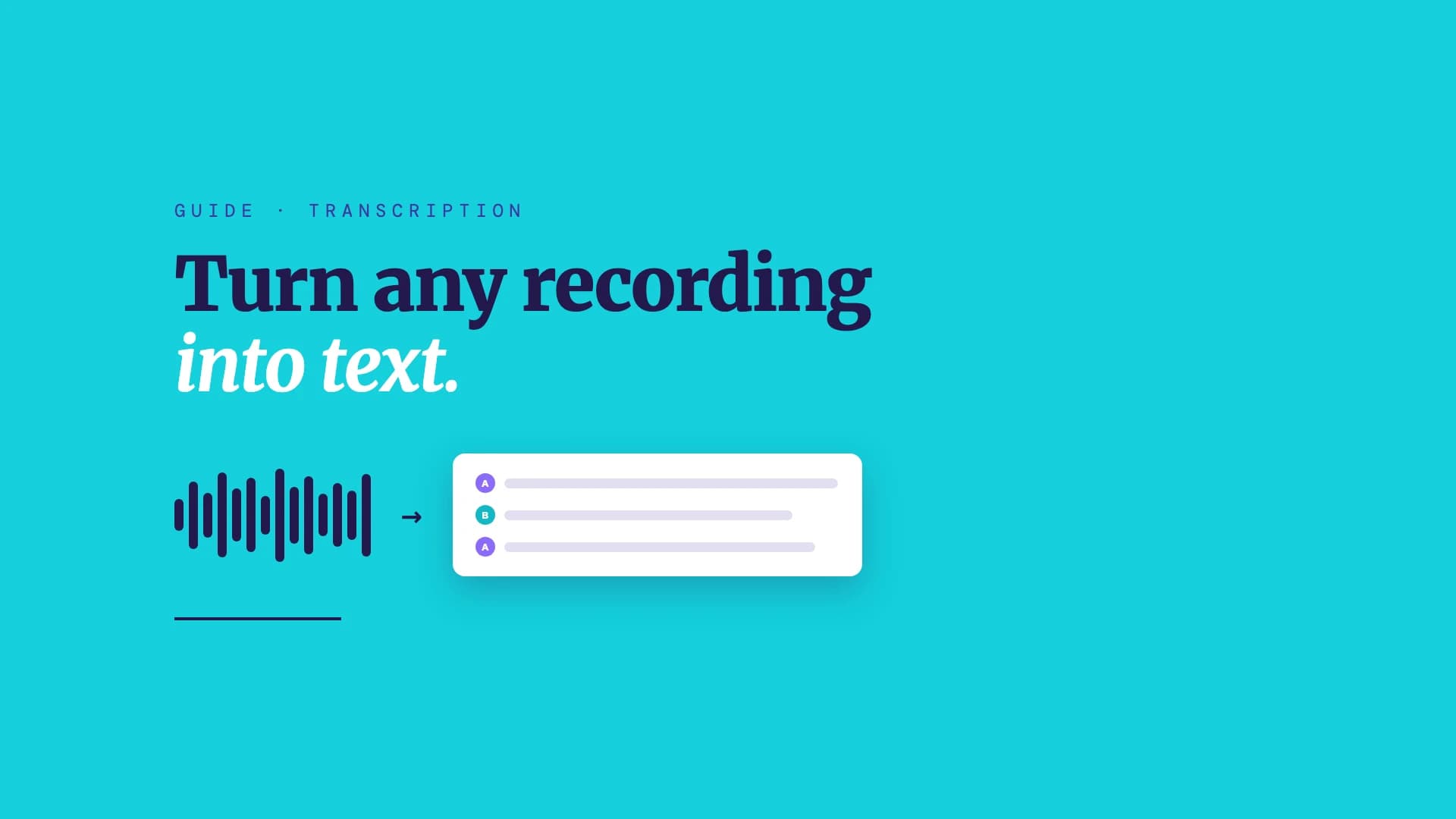
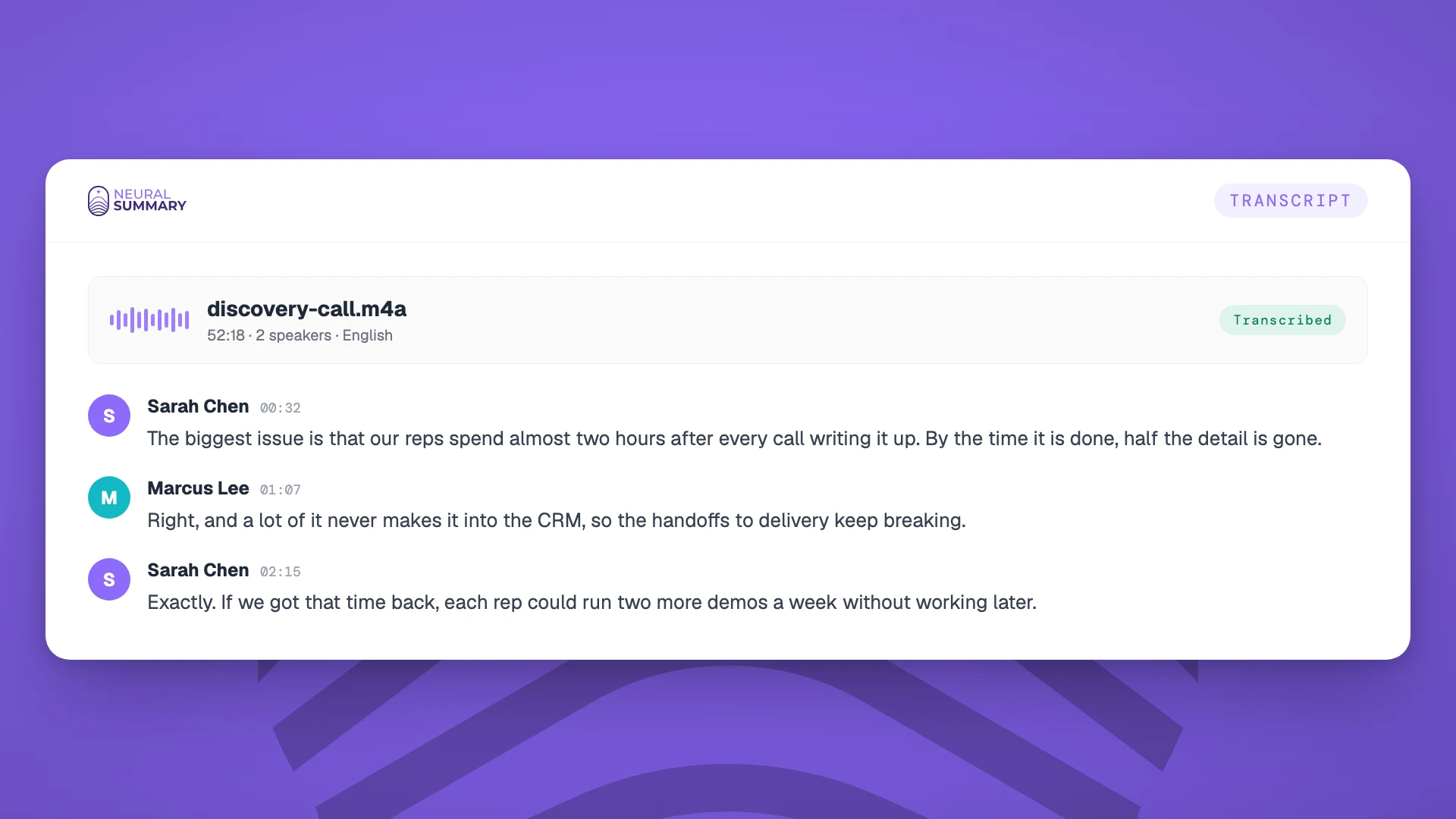
For a typical recording, an AI transcription tool is the path of least resistance. Upload the file, wait, and copy or export the text. The good ones add speaker labels (who said what), timestamps you can click to jump to the audio, and search.
A few things separate a good result from a frustrating one. Give it the cleanest audio you have. Pick a tool that does speaker diarization if more than one person is talking. And remember that the transcript is rarely the end goal, so choose something that also helps you do something with the text afterward, which we come back to below.
Free built-in tools
If you are on a budget or the audio is sensitive, your devices can already do a lot.
On a Mac, Apple Voice Memos can transcribe recordings (on recent macOS versions with Apple silicon), and Apple Notes can record and transcribe inline. On iPhone, Voice Memos added transcription in iOS 18. On Windows, voice typing (the Windows key plus H) dictates your speech into any text field. In Google Docs, Voice Typing (under Tools) transcribes live microphone input for free, though it only works in Chrome and only hears your microphone, so playing a recording aloud for it to "listen" degrades quality.
The pattern with built-in tools: they shine for single-speaker dictation and short personal clips, and they fall down on multi-speaker meetings, imported files, and speaker labels. For anything with more than one voice, an AI service is usually worth it.
How to transcribe specific files and recordings
The mechanics barely change by format. The common audio types, m4a, mp3, and WAV, are all accepted by virtually every transcription service, so the file extension rarely matters. (For the curious: m4a is usually AAC audio in an MP4 container, mp3 is older lossy compression, and WAV is typically uncompressed and lossless. Audio quality matters for accuracy; the container does not.)
| Source | How to transcribe it |
|---|---|
| m4a / mp3 / WAV file | Upload directly to an AI transcription tool, no conversion needed |
| iPhone Voice Memo | Transcribe in the app (iOS 18+), or share the .m4a file to a transcription tool |
| Zoom, Teams, or Google Meet | Use the platform's own transcription if your plan includes it, or export the recording and upload it |
| In-person conversation | Record it (with consent), then upload the audio |
For meeting platforms specifically, native transcription is usually tied to paid plans and admin settings, and the rules differ by platform. If you would rather not fight with that, recording or exporting the audio and running it through a transcription tool works the same on every platform. We cover the recording side in how to record a meeting on Google Meet, Teams, and Zoom, and the legal side in is it legal to record a conversation.
How accurate is AI transcription?
Accuracy is measured as word error rate (WER): the share of words the system gets wrong through substitutions, insertions, or deletions. A 5 percent WER means about 95 percent of words match a perfect reference. For context, professional human transcribers sit around 5 to 6 percent WER on conversational speech, which is the benchmark machines are measured against.
On clean, clear audio, modern AI transcription is genuinely good, commonly cited in the low-to-mid 90s percent and sometimes higher. But the numbers fall off a cliff in real conditions. Independent and vendor benchmarks of leading models report roughly 8 to 12 percent WER on real meetings with good microphones, and far worse, sometimes 15 to 25 percent or more, with background noise, overlapping speakers, heavy accents, jargon, or a single far-field room microphone. Note that many real-world accuracy figures come from vendor blogs rather than peer-reviewed studies, so treat specific percentages as directional.
Two practical takeaways. First, audio quality is the single biggest lever: a better microphone and one person speaking at a time will do more for your transcript than switching tools. Second, AI transcripts need a human read before you rely on them, because speech recognition can occasionally insert fabricated words ("hallucinations") that read plausibly but were never said. Always skim before you forward.
Speaker diarization, the "who spoke when" part, is a separate problem from the words themselves, and it struggles most when people talk over each other. If correct attribution matters (for example, who agreed to what), verify the speaker labels rather than trusting them blindly.
Free versus paid
A rough map of the landscape, as of 2026, since prices and free tiers change often:
| Option | Cost | Best for |
|---|---|---|
| Built-in OS tools | Free | Short, single-speaker, private clips |
| Free tiers of AI services | Free, with monthly limits | Occasional meetings and interviews |
| Paid AI transcription | Often a few cents per minute | Regular meetings, teams, bulk audio |
| Human transcription | ~$1+ per minute | Legal, medical, verbatim, poor audio |
For most professional use, a paid or freemium AI tool is the sweet spot: near-instant, cheap, and accurate enough on decent audio.
Then what? Turn the transcript into something useful
Here is the part worth saying out loud: a transcript is not the goal. A wall of text of everything that was said is only marginally more useful than the recording it came from. Nobody reads a 6,000-word transcript to find the one decision that mattered.
The value is in what you pull out of it. That is what Neural Summary is built to do: it transcribes your recording and then turns the transcript into a clean summary, the decisions, and action items with owners, so you finish with something you can act on instead of a document you file and forget. If you want the argument for why the transcript is the means and not the end, our piece on why meeting summaries are not deliverables makes the case.
The bottom line
For almost any recording, an AI transcription tool is the fastest route from audio to text: upload, wait, copy. Built-in device tools cover free, private, single-speaker clips. Human transcription is the premium option when accuracy is non-negotiable. Whatever you use, give it the cleanest audio you can, read the result before trusting it, and remember that the transcript is a step, not the destination.
Frequently asked questions
How do I transcribe an m4a file to text?
Upload the .m4a directly to an AI transcription tool; no conversion is needed, since m4a is supported almost everywhere. On a recent iPhone or Mac, Apple's built-in Voice Memos can also transcribe its own m4a recordings in the app.
How do I convert an mp3 to text?
Upload the mp3 to an AI transcription service and export the transcript, or run it through an open-source speech-to-text model if you are technical. mp3 is universally supported, so there is no need to convert the file first.
Can I transcribe audio for free?
Yes. Your phone and computer have free built-in transcription (Apple Voice Memos and Notes, Windows voice typing, Google Docs Voice Typing), which work well for short, single-speaker audio. Most paid AI services also offer a free tier with a monthly minute limit, which is enough for occasional meetings.
How accurate is AI transcription?
On clean audio with one speaker, modern AI transcription is often in the low-to-mid 90s percent of words correct. Accuracy drops with background noise, crosstalk, accents, and a shared room microphone, sometimes into the 70s or 80s. Human transcription remains the most accurate at well above 99 percent. Always read an AI transcript before relying on it.
How do I transcribe a Zoom, Teams, or Google Meet recording?
Each platform offers native transcription on qualifying paid plans (with admin settings that vary), which is the simplest route if you have it. Otherwise, export the meeting recording and upload the audio or video to a transcription tool, which works the same regardless of platform.
How do I transcribe an iPhone voice memo?
On iOS 18 or later, open the recording in Voice Memos and view its transcript in the app. On older versions, or for speaker labels and summaries, share the .m4a file to an AI transcription tool.