Every major meeting platform has a record button. The trick is knowing where it is, whether your plan includes it, where the file ends up afterward, and what to do if you are not the host. This guide covers the three platforms most business meetings run on, Google Meet, Microsoft Teams, and Zoom, with the exact steps for each, plus what to do when native recording is not available to you. One quick note before we start: recording laws vary by country and US state, so if you are unsure, read our guide on whether it is legal to record a conversation and, wherever you are, just tell people you are recording.
The quick version
| Platform | How to start | Free plan? | Where it saves |
|---|---|---|---|
 Google Meet Google Meet | More options (three dots) then Record meeting | No, paid plans only | Organizer’s Google Drive ("Meet Recordings") |
 Microsoft Teams Microsoft Teams | More actions (•••) then Start recording | No, paid Microsoft 365 only | Recorder’s OneDrive, or channel SharePoint |
 Zoom Zoom | Record, then local or cloud | Yes, local recording only | Your computer (local), or Zoom cloud (paid) |
The pattern is the same everywhere: a record control in the meeting toolbar, a notice to participants that recording has started, and a file that lands in the organizer's storage when the meeting ends. The differences are in plan requirements and where the file goes.
How to record a Google Meet
During the call, click the More options menu (the three dots in the bottom-right corner), choose Record meeting, and confirm. Everyone in the call is notified that recording has started. To finish, open the same menu and select Stop recording, or just end the meeting.
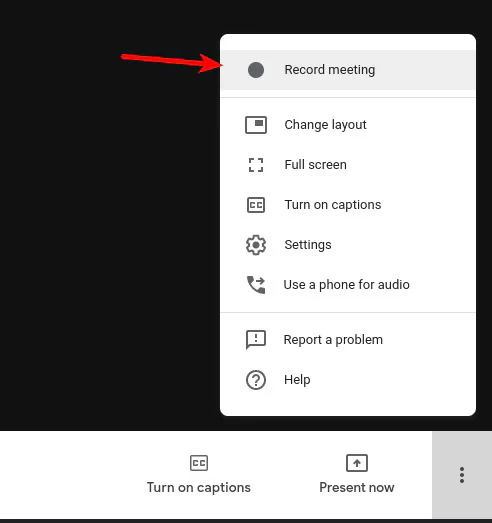
What you need: native recording is a paid feature. It is available on Google Workspace Business Standard and above, the Enterprise editions, the Workspace Individual plan, and Google One plans with 2 TB or more. Free personal Gmail accounts and the Business Starter plan cannot record natively, and an admin may need to enable recording for your organization first. If you are on a free Google account, you do not have to upgrade just to keep a record of your calls: you can capture the meeting with Neural Summary instead, which includes up to 5 meetings a month free.
Where it saves: the file lands in the meeting organizer's Google Drive, inside a folder called "Meet Recordings," and Google emails a link to the organizer and to whoever started the recording. For the official steps, see Google's Meet recording help. If you mainly want clean notes out of Google Meet rather than a video file, our companion guide on how to take notes in Google Meet covers that workflow end to end.
How to record a Microsoft Teams meeting
In the meeting controls, click More actions (the three dots, •••) and choose Start recording. Teams notifies participants, and if your organization has it switched on, it can capture a live transcript at the same time. To stop, open More actions again and select Stop recording, or let it end with the meeting.
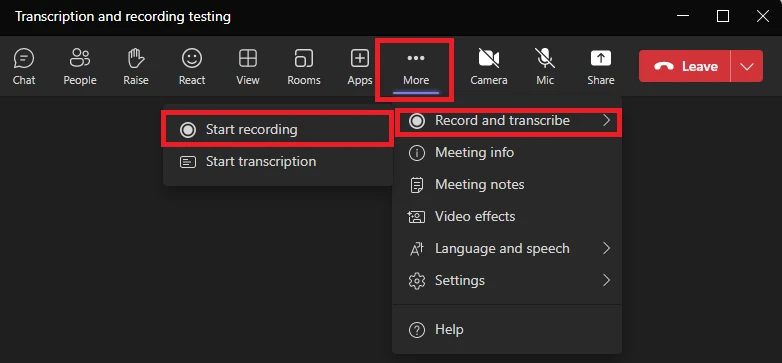
What you need: recording requires a paid Microsoft 365 license (Business, Enterprise, or Education). Guests and people on free plans cannot start a recording.
Where it saves: it depends on the meeting type. A regular (non-channel) meeting saves to the recorder's OneDrive, in a "Recordings" folder. A channel meeting saves to that channel's SharePoint, under the Files tab, where channel members can see it. By default only the organizer and co-organizers can edit and share the recording, other people in your organization get view access, and you share it with anyone else manually. Microsoft documents the current behavior in its record a meeting in Teams support article.
How to record a Zoom meeting
As the host, click Record in the meeting toolbar. Zoom gives you two choices: Record on this Computer (local) or Record to the Cloud. Local recording works on every plan, including the free tier, and saves the files to your computer when the meeting ends, typically an MP4 video, an M4A audio file, and a transcript. Cloud recording is for paid plans (Pro and above) and stores the file on Zoom's servers, which you reach later from the Zoom web portal under Recordings.
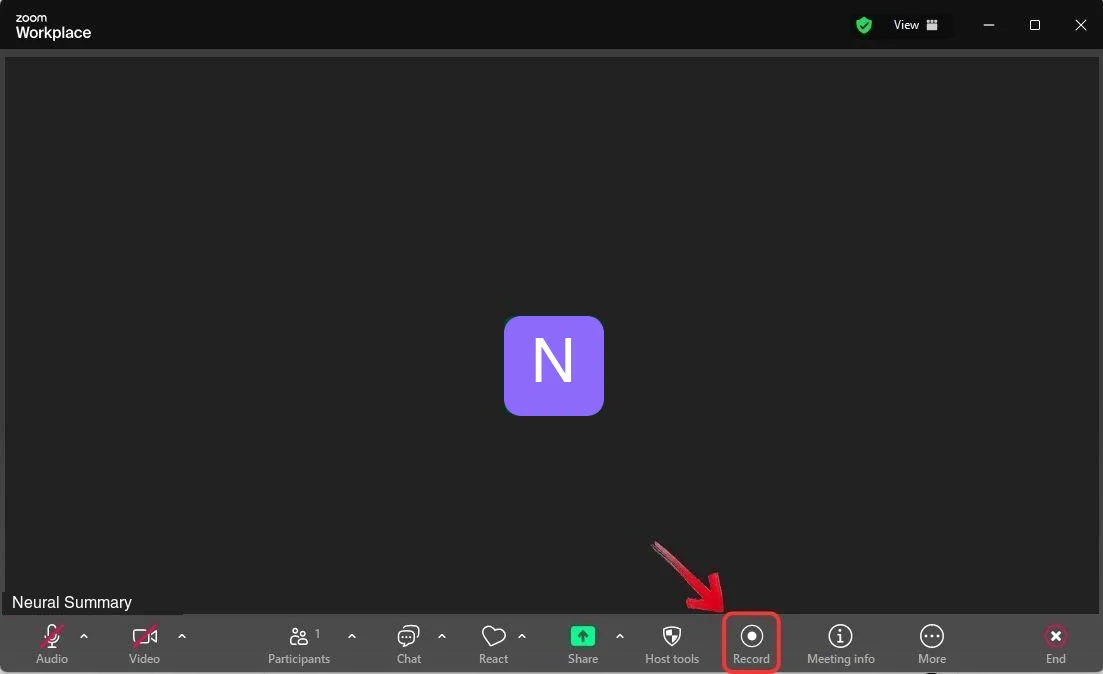
What you need: any Zoom account can record locally as the host. Cloud recording requires a paid license. A participant who is not the host can record only if the host grants them recording permission during the call.
Where it saves: local recordings sit in a Zoom folder on your computer (each meeting in its own dated subfolder); cloud recordings live in your Zoom account online. Zoom's own recording guide has the current details.
What if you cannot record natively?
Plenty of people hit a wall here: you are on a free plan, you are a guest, or you are simply not the host. A few options:
Ask the host. The simplest fix is to ask whoever owns the meeting to record it, or on Zoom, to grant you recording permission. Most people say yes when you explain you want it for your own notes.
Use your computer's built-in screen recorder. On a Mac, press Shift, Command, and 5 to open the recording toolbar (or use QuickTime). On Windows, the Game Bar (Windows key plus G) can capture the screen. These record what is on your screen and your microphone; capturing the other side's audio cleanly can need a little extra setup, so test it before an important call.
Record the audio directly. For in-person meetings, or when screen recording is awkward, record the audio on your phone or a voice recorder, then upload it afterward. This is the most reliable path when the platform will not cooperate, and it is exactly how a tool like Neural Summary is designed to work: you record or upload the audio yourself, with no bot joining the call, and it handles the rest. Its free plan covers up to 5 meetings a month, so a free Google Meet, Teams, or Zoom account is enough to capture and write up your calls.
Record responsibly
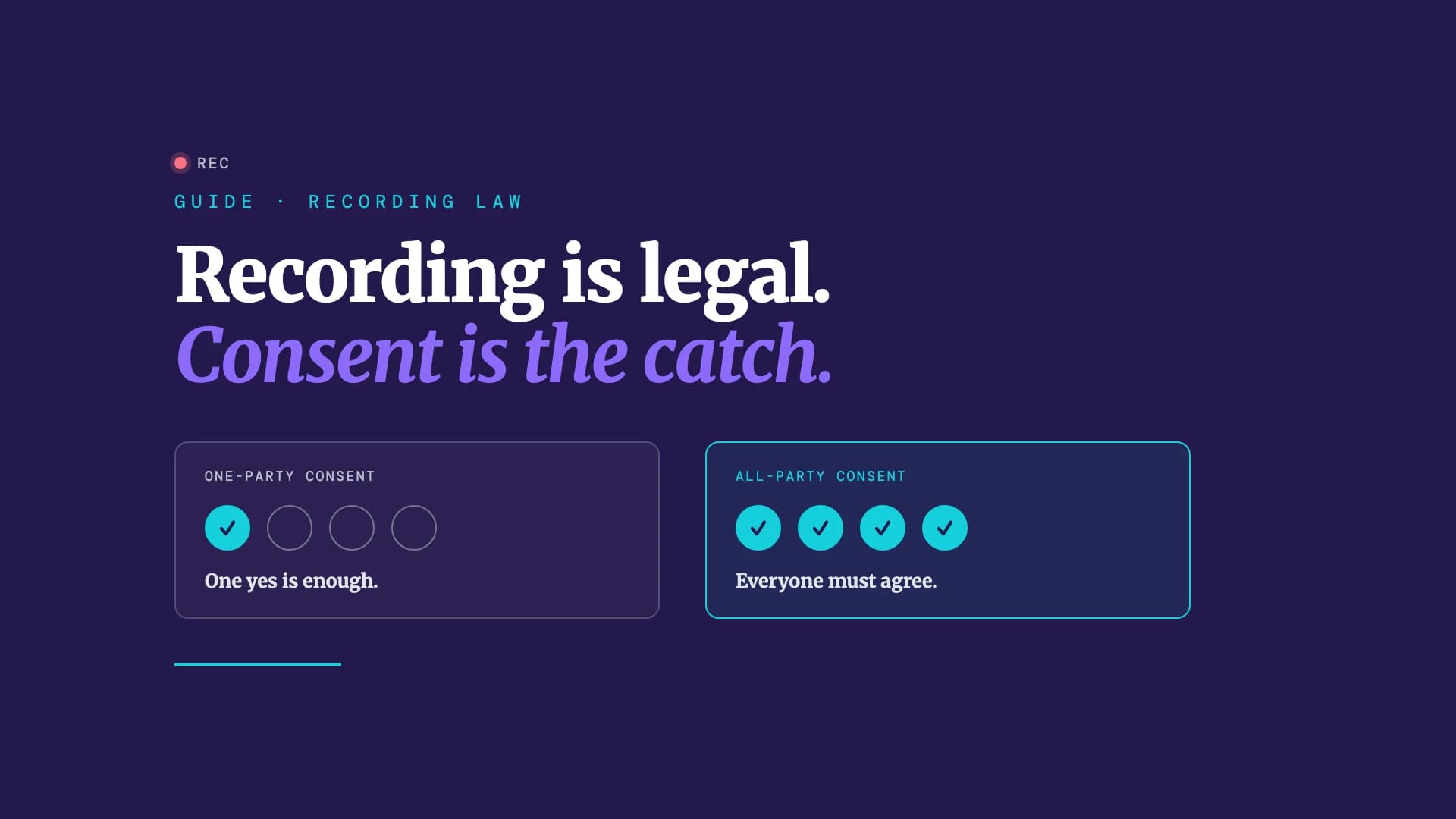
A recording is most useful, and most defensible, when it is open. Tell people at the start of the meeting that you are recording, and let the platform's on-screen indicator do its job. In some places, including a few US states and countries like Germany and France, recording without everyone's agreement can be unlawful, so when in doubt get consent. We go through the details, country by country, in is it legal to record a conversation.
From recording to results
Here is the part most guides skip. A recording is not the goal. A week later, nobody rewatches a 47-minute video to find the one decision that mattered. The value is in what you pull out of it: what was decided, who owns what, and what happens next.
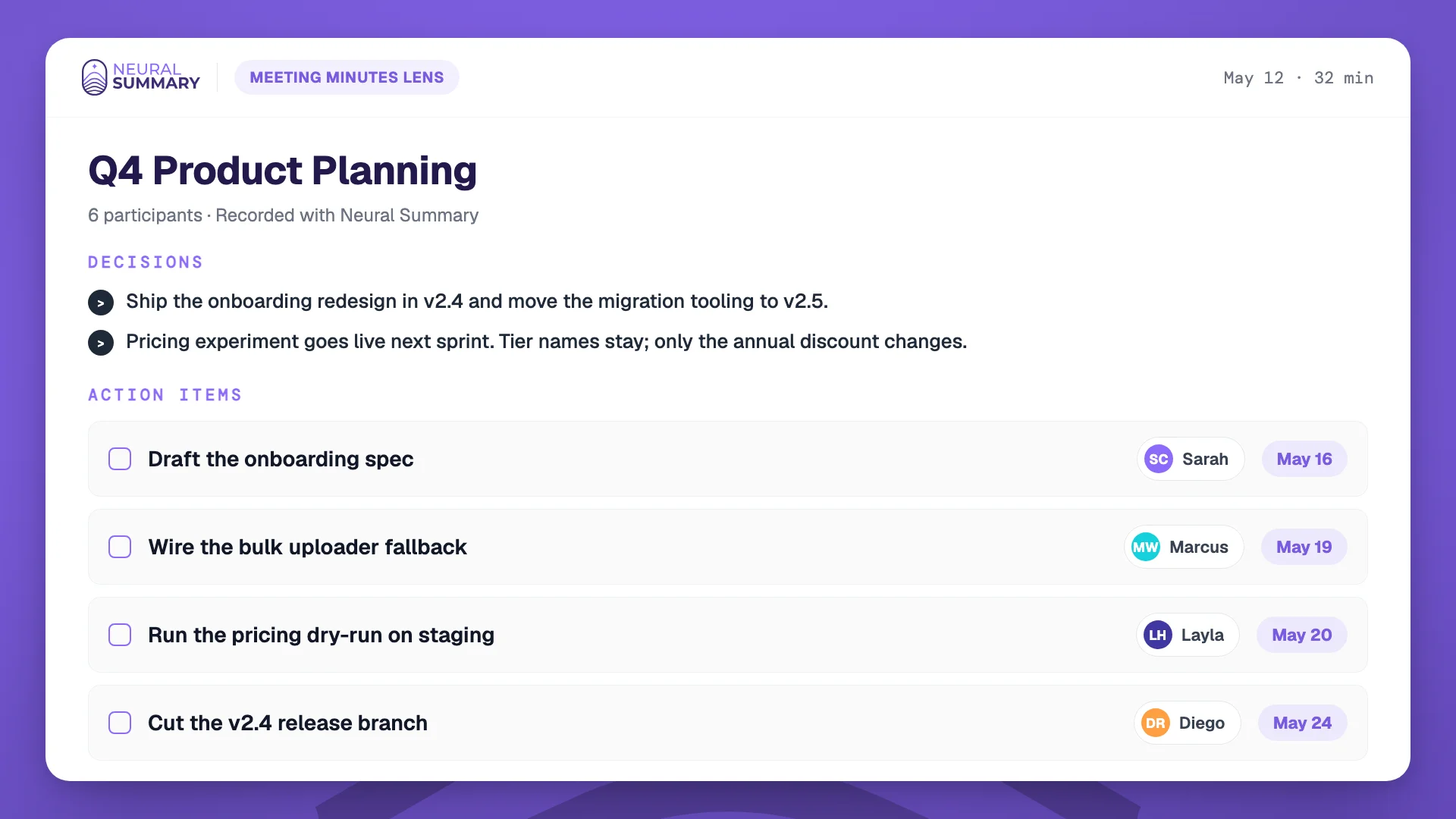
That is the gap Neural Summary is built to close. Point it at a meeting you recorded or uploaded, on any platform, and instead of a file you forget about you get a clean summary, the key decisions, and a list of action items with suggested owners. The recording becomes something you can act on, which is the only reason most of us press record in the first place. If you want the reasoning behind that, our piece on why meeting summaries are not deliverables makes the case.
The bottom line
Recording a meeting is a two-click action on every major platform: open the overflow menu, hit record, and the file lands in the organizer's storage when you finish. The catches are plan limits (Google Meet and Teams need paid plans; Zoom records locally even on free) and the fact that the host usually controls it. When native recording is not an option, a screen recorder or a direct audio recording covers you. Tell people you are recording, and then make the recording earn its keep by turning it into notes and next steps.
Frequently asked questions
How do I record a Google Meet with a free account?
Free personal Gmail accounts cannot record a Google Meet natively, since recording is a paid Workspace feature. Your options are to ask the host (if they are on a paid plan) to record, use your computer's built-in screen recorder, or record the audio separately and upload it to a notes tool afterward. Neural Summary also records or accepts an upload and includes up to 5 meetings a month on its free plan, so you can capture and summarize calls without upgrading Google.
Can I record a meeting if I am not the host?
Usually not directly. On Google Meet and Teams the recording control is limited to the host or organizer (and people they allow). On Zoom, a participant can record only if the host grants permission. If you cannot get it, a screen recorder or a separate audio recording is the reliable fallback.
Where do Microsoft Teams recordings go?
A regular meeting saves to the recorder's OneDrive in a "Recordings" folder; a channel meeting saves to that channel's SharePoint under the Files tab. By default only the organizer and co-organizers can edit and share it, and you grant access to others manually.
Can you record a Zoom meeting for free?
Yes, but only locally. Free Zoom accounts can record to the host's computer. Cloud recording, which stores the file on Zoom's servers, requires a paid plan.
Does everyone get notified when a meeting is recorded?
On Google Meet, Microsoft Teams, and Zoom, yes: each shows an on-screen indicator and notifies participants when recording starts. That visible notice is also good practice legally, since open recording is far safer than secret recording.
Is it legal to record a meeting?
It depends on where the participants are. Many places let you record a conversation you are part of, but some require everyone's consent, and a few treat secret recording as a crime. The safe habit everywhere is to announce that you are recording. Our recording-law guide breaks it down by country and US state.
How do I turn a meeting recording into notes and action items?
Upload the recording (or the audio) to an AI meeting notes tool. Neural Summary takes a recording from any platform and produces a structured summary, the decisions, and action items with suggested owners, so you get something you can act on instead of a video you never reopen.