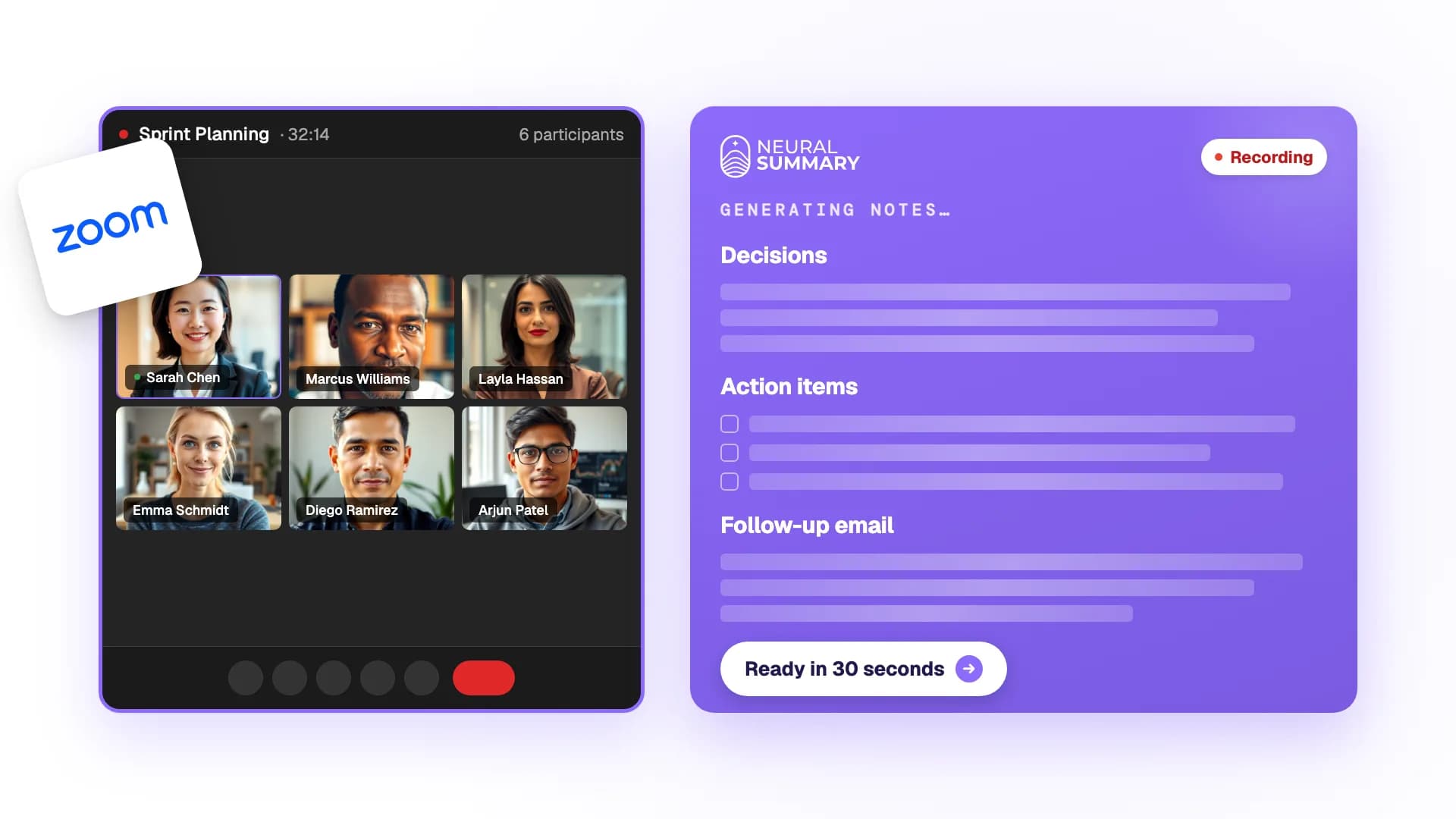
For every hour you spend on a Zoom call, you spend two more after it. Writing the recap. Chasing the action items. Drafting the email that should have gone out already.
Even then, the action items often lack owners and dates. A list without them rarely drives anything forward. Notes accumulate. Work does not.
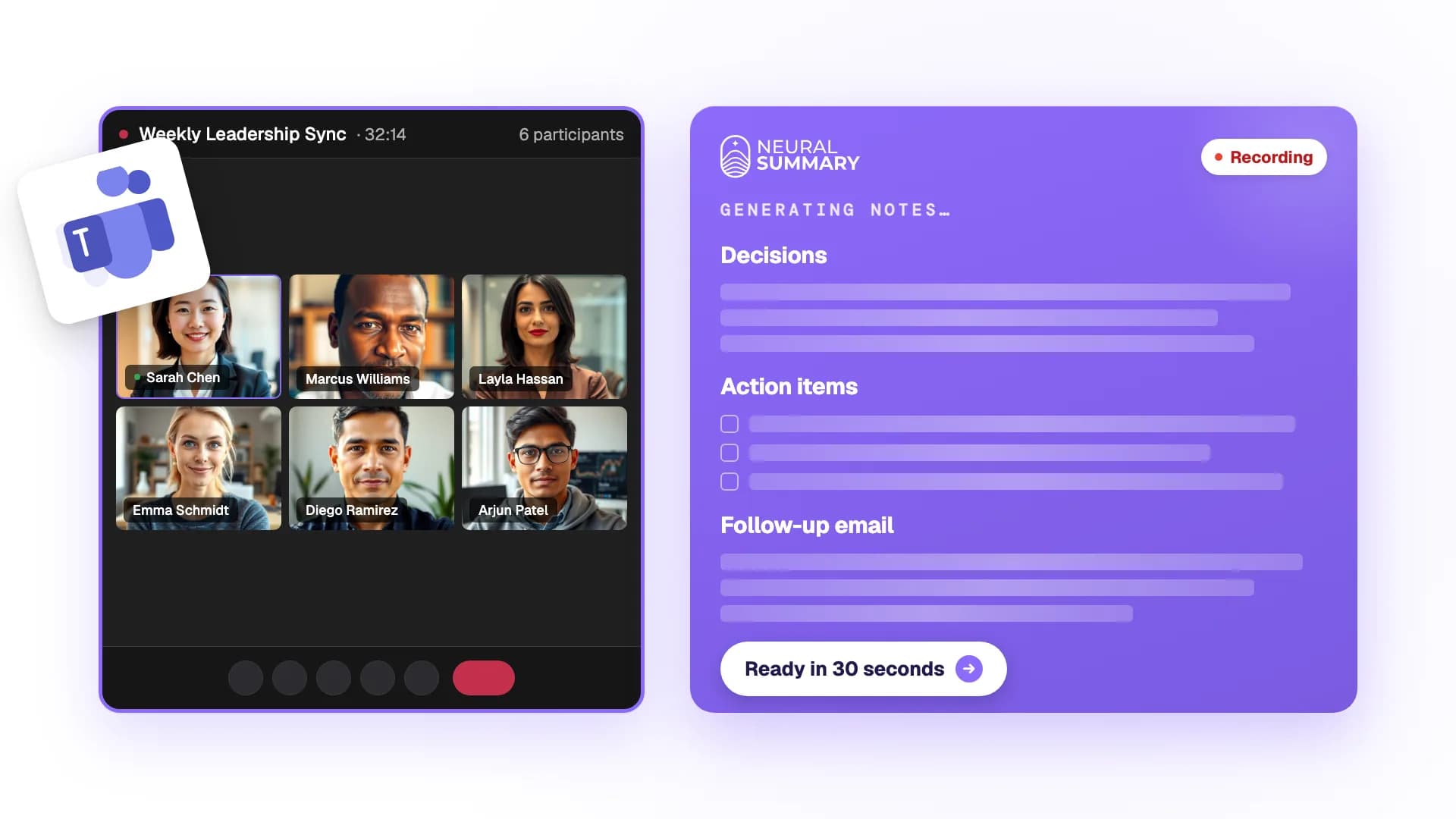
This post shows you how to make the most of Zoom itself: recording cleanly on whatever plan you have, getting a usable transcript, and using AI Companion where your plan includes it. Then we show you the shortcut. Neural Summary takes the same recording and produces structured notes, action items with suggested owners and dates, and ready-to-send follow-ups. In minutes instead of hours. On every Zoom plan, including free Basic.
Step 1: Safeguard the audio
Everything downstream depends on this step. No clean audio, no usable notes, no real follow-up. Memory will not save you. It remembers what you already believed and forgets the texture you missed.
Three real ways to capture a Zoom call:
Zoom's local recording. Click "Record" in the call (on some plans it reads "Record on this computer"). The recording is saved as an MP4 video and an M4A audio file on your machine when the meeting ends, in your Documents/Zoom folder by default. Local recording is available on the free Basic plan, which makes Zoom unusually generous here. Two catches: it works from the desktop app only, not from a phone or tablet, and only the host records unless the host grants you permission first.
Zoom's cloud recording. On paid plans (Pro and up), "Record to the cloud" saves the recording, plus an audio transcript, to your Zoom web portal instead of your machine, and it works from mobile too. Pro accounts get 10 GB of cloud storage per user. Processing takes a while after the call ends, roughly in proportion to the meeting length.
Voice recording on your phone or laptop. The universal fallback. Voice Memos on a Mac or iPhone, Recorder on Android, the built-in voice recorder on Windows. Works regardless of who hosts, no permission needed. The trade-off: you have to remember to start it, and you only capture what your device's microphone hears, which means one side of the call on a headset or muddy room audio on speakerphone.
Tab or system recording in Neural Summary. Works on any Zoom call regardless of plan or who hosts, including calls you join from the browser. Neural Summary captures the call audio and your microphone in one stream, with no plugin and no bot joining the meeting. Both sides of the call are captured cleanly, and nothing depends on the host remembering to hit record.
A few practical habits make a real difference to whichever method you pick:
- >Tell people you are recording. Zoom notifies participants when its own recording starts and asks them to consent or leave; if you record outside Zoom, say it out loud at the top of the call. Depending on where participants are, the law may require everyone's consent, not just yours. Our guide on whether it is legal to record a conversation covers the rules per country.
- >Use a wired headset or a quiet room. Speaker echo and ambient noise hurt transcription accuracy more than people realize. The cleaner the audio, the better every downstream step gets.
- >Have everyone introduce themselves at the start. A simple "I'm Sarah from Acme, I lead product" gives the AI clean speaker labels to work with for the rest of the call.
- >Try not to talk over each other. Most transcription engines handle one speaker at a time well and overlapping voices poorly. A small amount of meeting discipline pays back at the deliverable stage.
- >Name the recording before you file it. Future-you, looking at a list of files two weeks later, will not remember what "zoom_0.mp4" was about.
Step 2: How to take notes in Zoom
You have the audio. Now make it readable.
The simplest approach: keep a document open during the call and type as you listen. Free, works on any plan, shareable by default. The cost is your attention. Half of you is on the conversation, half on the typing. The notes you end up with are biased toward what was easy to type and away from the parts of the conversation that actually mattered.
Use AI Companion where your plan includes it. Zoom's built-in assistant can generate a meeting summary and answer questions about the call. On paid Workplace plans the host can turn on Meeting Summary and have the recap delivered by email and in the team chat after the call. Since AI Companion 3.0 shipped in late 2025, free Basic users get limited in-meeting use to try, and Zoom sells a standalone AI plan for $10 a month for people whose host does not have it. The recap is a solid record of what was said. Two structural limits: the host controls it, not you, and what you get is a summary, not deliverables. Nobody's CRM gets updated by a recap email.
Three habits make any meeting note, AI-assisted or not, dramatically more useful:
- >State the agenda out loud at the start. "Today I want to cover three things: status on the integration, the pricing question, and next steps." Anchors the structure for the whole call.
- >Summarize verbally before you end. "So to recap, we agreed to ship feature X by end of month, Sarah will own the spec, and we will revisit pricing next quarter." A 60-second recap dramatically improves the accuracy of the decisions and action items you (or your AI) extract afterward.
- >Pick the right format for the call. Generic meeting notes serve nobody well. The notes for an internal sync should look different from the notes for a 1:1, which should look different from a sales discovery call.
Neural Summary takes the notes for you. Drop the recording in, pick a Lens (Meeting Minutes, Executive Summary, 1:1 Notes, Retrospective, and more), and get a consulting-grade structured summary back. Sections, decisions surfaced, speaker attribution where it matters. The bottom line lands at the top. The details are still there underneath. The kind of summary you would proudly share with a client without rewriting a word.
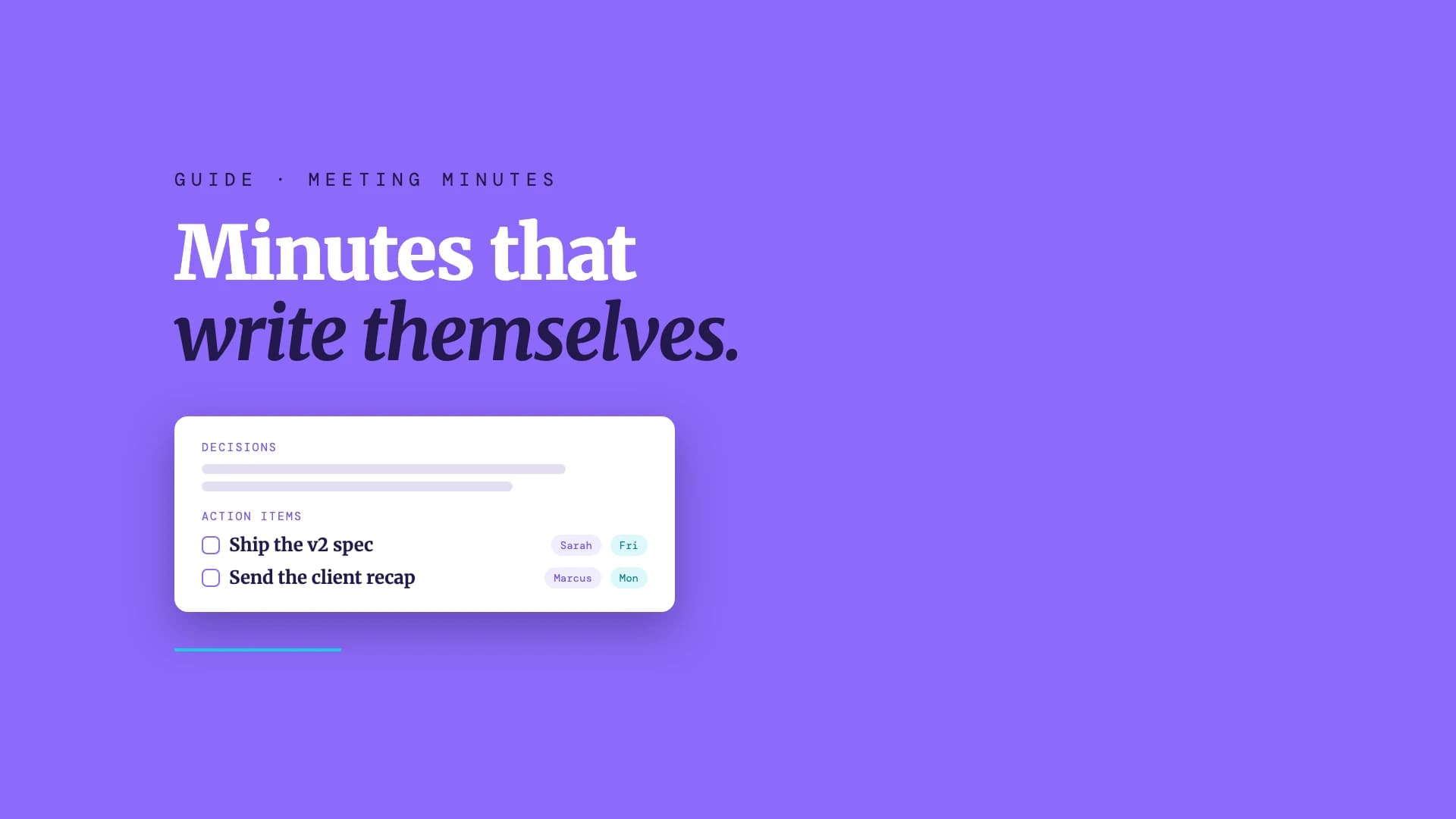
Action items come with owners and dates. Even when nobody said the words out loud, Neural Summary suggests who should own each item and when it is realistically due, based on what was discussed. You can correct them in a click. The point is that they are visible. A blank "Action items" list with no owners hides accountability. A list with names and dates draws the eye. What gets seen gets done.
You stop taking notes during the call. You give the meeting your full attention. The notes show up, structured, when the call ends.
Step 3: Turn conversations into work artifacts
Notes are a record. They are not the work.
The actual work that comes out of a meeting is concrete. A flowchart of the process you just discussed. A sprint-ready backlog with acceptance criteria. A follow-up email to the prospect with their three pain points named. A project brief. A decision log. A CRM update with objections logged. These are the deliverables. The notes were just the input.
You can produce all of these manually. After the call, open Miro and sketch the flow. Open Linear and break the discussion into tickets with owners. Draft the follow-up in your email client, pulling out the language the prospect used. Log decisions in Notion. Update the CRM. For a 30-minute call, that routinely eats 90 minutes of post-meeting admin.
Neural Summary generates the artifacts for you. From the same recording, pick whichever Lenses your call needs and they all generate in parallel. One recording, many outputs.
The right Lens depends on what work the meeting was supposed to produce:
| Meeting type | Recommended Lenses |
|---|---|
| Sales discovery | Follow-up email, CRM notes, deal qualification |
| Client kickoff | Project brief, SOW outline, action items |
| Sprint planning | Agile backlog, decision log |
| Product retrospective | Retrospective notes, action items |
| 1:1 | 1:1 notes, coaching notes |
| Strategy session | Executive summary, decision log |
| Internal sync | Meeting minutes, action items |
Two practical habits compound on top:
- >Pick the Lens before you record, when you can. Knowing in advance that you will produce a follow-up email and a CRM note shapes the questions you ask in the call. You probe harder for next steps, close cleaner, leave less to interpretation.
- >Send while it is warm. A follow-up that arrives within an hour of the call lands differently than one that arrives the next day. With the right workflow that is realistic, not aspirational.
The end-to-end workflow
Putting the three steps together looks like this:
- 1Start the capture before the call gets going. Record locally in Zoom if you are the host on desktop, or start a recording in Neural Summary; either way, say that you are recording.
- 2Run the meeting normally. State the agenda at the top, recap verbally before you close, stop the recording when the call ends.
- 3Pick your Lenses, review, and ship. Meeting minutes for the team. Follow-up email for the prospect. Sprint backlog for engineering. The deliverables open in your dashboard. Edit if needed, then copy into your email client, paste into your CRM, drop into Linear, share a link.
Steps 2 and 3 take under five minutes for most calls. The follow-up goes out the same hour, often within minutes of the call ending, while the conversation is still warm in everyone's head.
The capability stack
Each of the three steps credits a different layer of the stack. Zoom handles the call and, unusually for the category, gives even free users local recording. Paid Zoom plans add cloud recording, transcripts, and AI Companion summaries. Neural Summary sits on top, producing the deliverables, on any plan including free Basic.
 Free → Pro
 Pro and upBasic (free)
The smart way to take notes in Zoom
You can take great notes in Zoom the hard way.
Record the call, if you are the host and remembered to hit the button. Type into a doc while the meeting runs, and lose half your attention to the keyboard. State the agenda at the top, give a verbal recap at the bottom. Read the AI Companion summary, if your host's plan includes it. Then sit down afterward to draft the follow-up email, pull out the action items, assign owners, set dates, and update the CRM. Two hours later, you have something to send.
Or you can take great notes the smart way.
Start a recording in Neural Summary. Pay attention to the meeting. When the call ends, pick a Lens. The decisions, action items with suggested owners and dates, follow-up email, and sprint backlog are waiting in your dashboard. Edit if you want. Ship.
Five minutes instead of two hours. On every Zoom call. On every plan. Including free Basic.
Also in this series: how to take notes in Google Meet and how to take notes in Microsoft Teams.
Work smarter, not longer.