For every hour you spend in a Google Meet call, you spend two more after it. Writing the recap. Chasing the action items. Drafting the email that should have gone out already.
Even then, the action items often lack owners and dates. A list without them rarely drives anything forward. Notes accumulate. Work does not.
This post shows you how to make the most of the Google stack you already have: recording cleanly in Google Meet, structuring notes in Google Docs so the bottom line lands first and the details are still there, and using Gemini to polish the result. Then we show you the shortcut. Neural Summary takes the same recording and produces structured notes, action items with suggested owners and dates, and ready-to-send follow-ups. In minutes instead of hours. On every Google Meet plan, including free Gmail.
Step 1: Safeguard the audio
Everything downstream depends on this step. No clean audio, no usable notes, no real follow-up. Memory will not save you. It remembers what you already believed and forgets the texture you missed.
Three real ways to capture a Google Meet call:
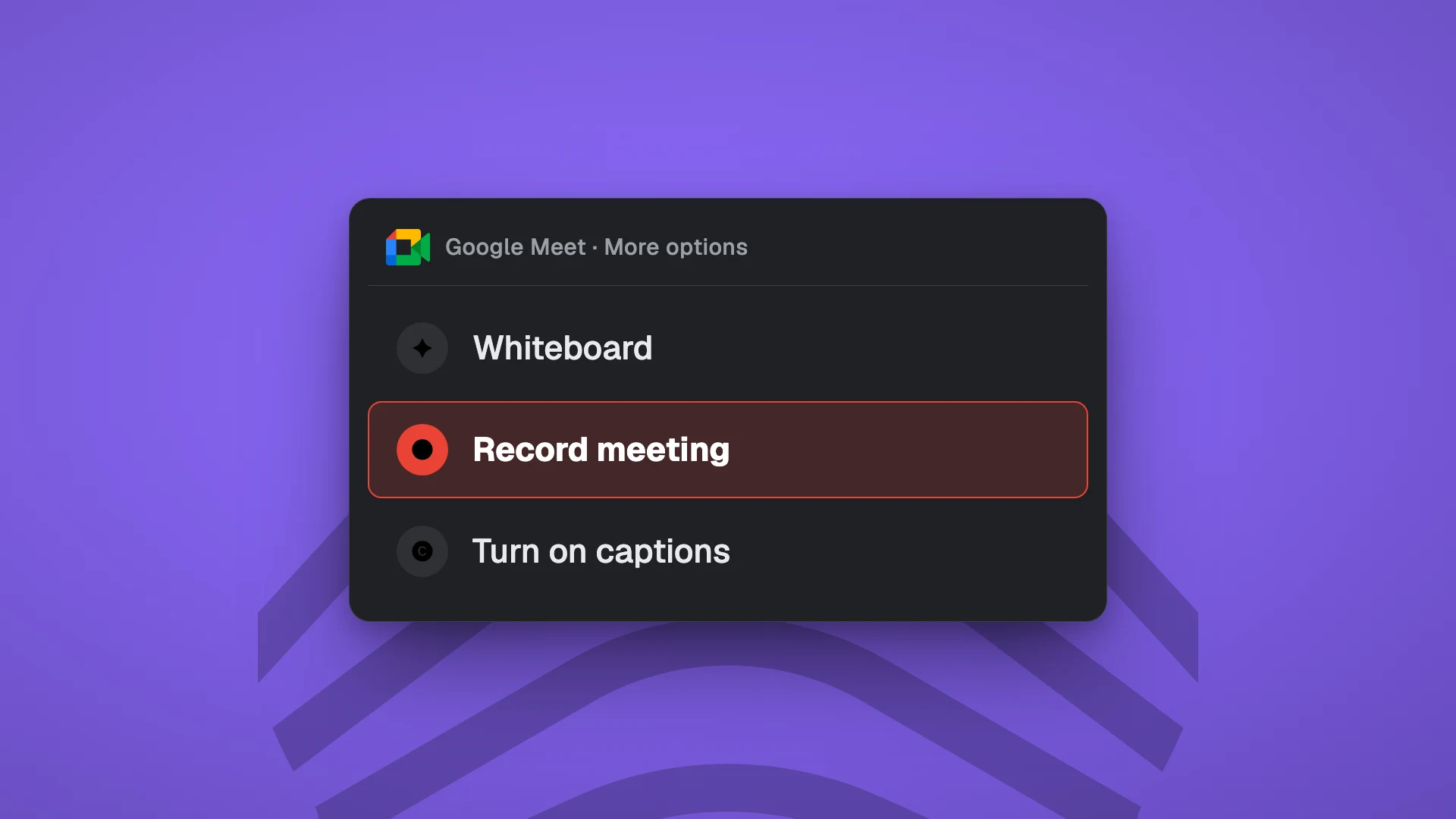
Google Meet's built-in recording. Click the three-dot menu in the call, pick "Record meeting," confirm. The recording lands in your Drive when the call ends. Requires Google Workspace Business Standard or higher. Not available on free Gmail.
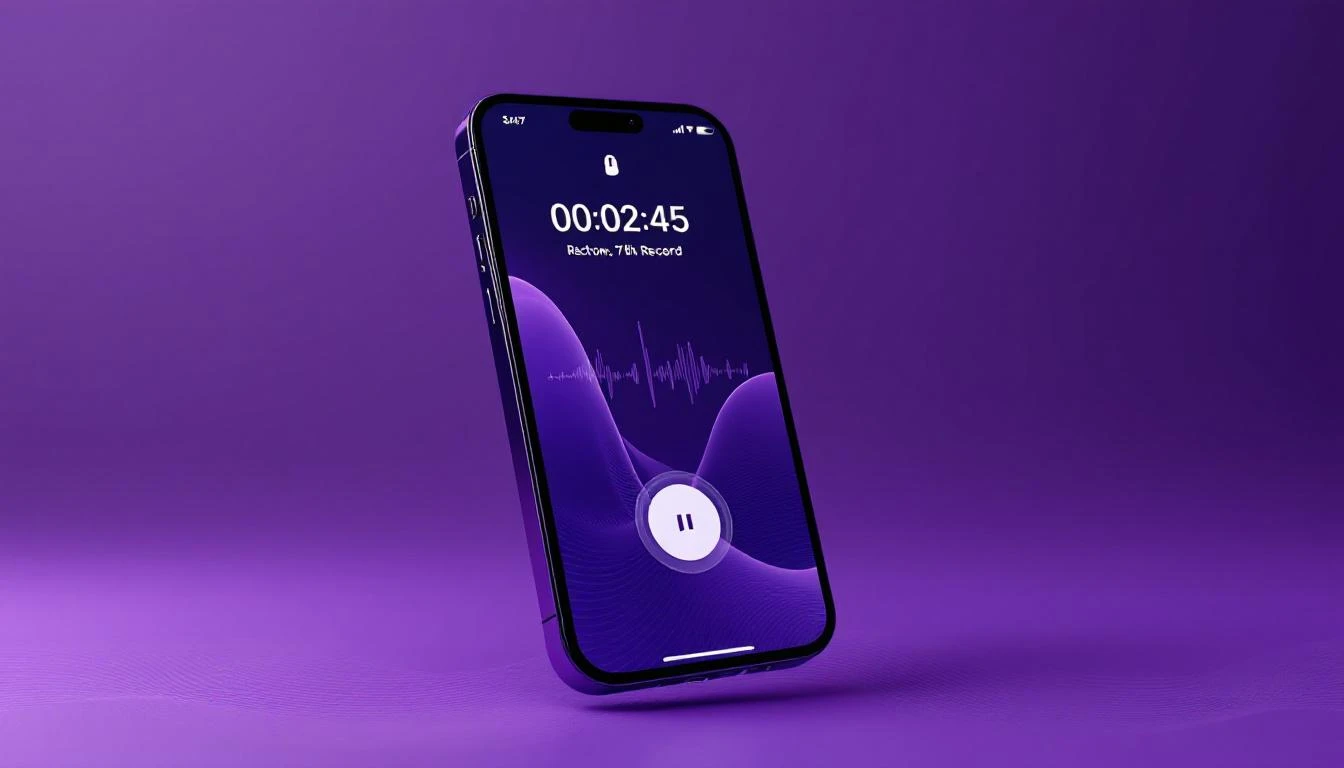
Voice recording on your phone or laptop. The universal fallback. Voice Memos on a Mac or iPhone, Recorder on Android, the built-in voice recorder on Windows. Works on every plan, every account, no setup. The trade-off: you have to remember to start it, and you only capture what your device's microphone hears, which means one side of the call on a headset or muddy room audio on speakerphone.
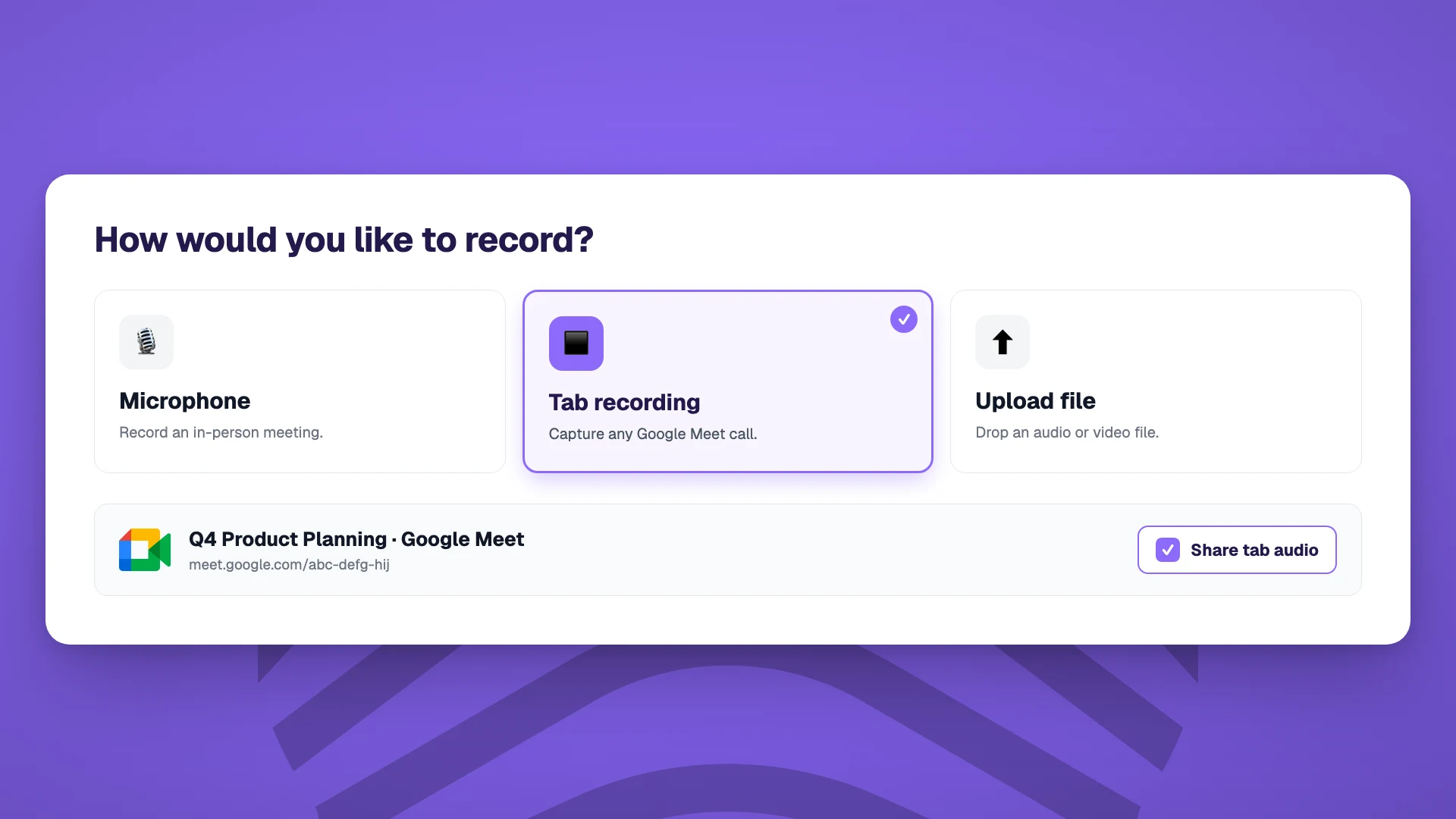
Tab recording in Neural Summary. Works on any Google Meet call regardless of your Workspace tier, including free Gmail. Pick "Tab recording," select the Google Meet tab, and check "Share tab audio." Neural Summary captures the meeting tab's audio and your microphone in one stream, in the browser, with no plugin and no bot in the call. Both sides of the call are captured cleanly.
A few practical habits make a real difference to whichever method you pick:
- >Check "Share tab audio" before you start. When using browser-based capture, the most common failure mode is forgetting to tick the box that includes the tab's audio when you select the Google Meet tab. No audio, no transcript.
- >Use a wired headset or a quiet room. Speaker echo and ambient noise hurt transcription accuracy more than people realize. The cleaner the audio, the better every downstream step gets.
- >Have everyone introduce themselves at the start. A simple "I'm Sarah from Acme, I lead product" gives the AI clean speaker labels to work with for the rest of the call.
- >Try not to talk over each other. Most transcription engines handle one speaker at a time well and overlapping voices poorly. A small amount of meeting discipline pays back at the deliverable stage.
- >Name the recording before you close the tab. Future-you, looking at a list of meetings two weeks later, will not remember what "Recording 14" was about.
Step 2: How to take notes in Google Meet
You have the audio. Now make it readable.
The simplest approach: open a Google Doc during the call and type as you listen. Free, works on any account, and a Doc is shareable by default. The cost is your attention. Half of you is on the conversation, half on the typing. The notes you end up with are biased toward what was easy to type and away from the parts of the conversation that actually mattered.
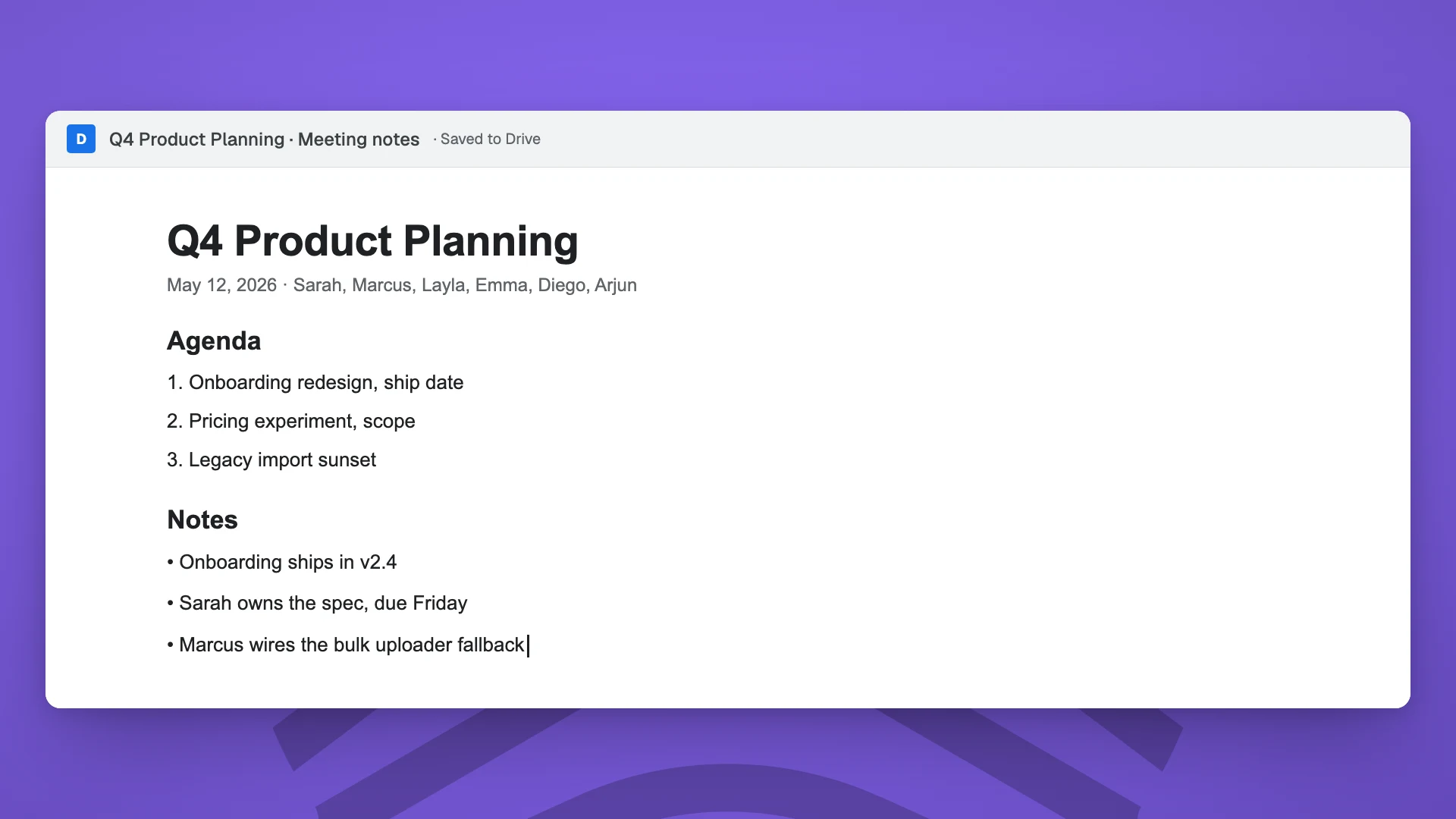
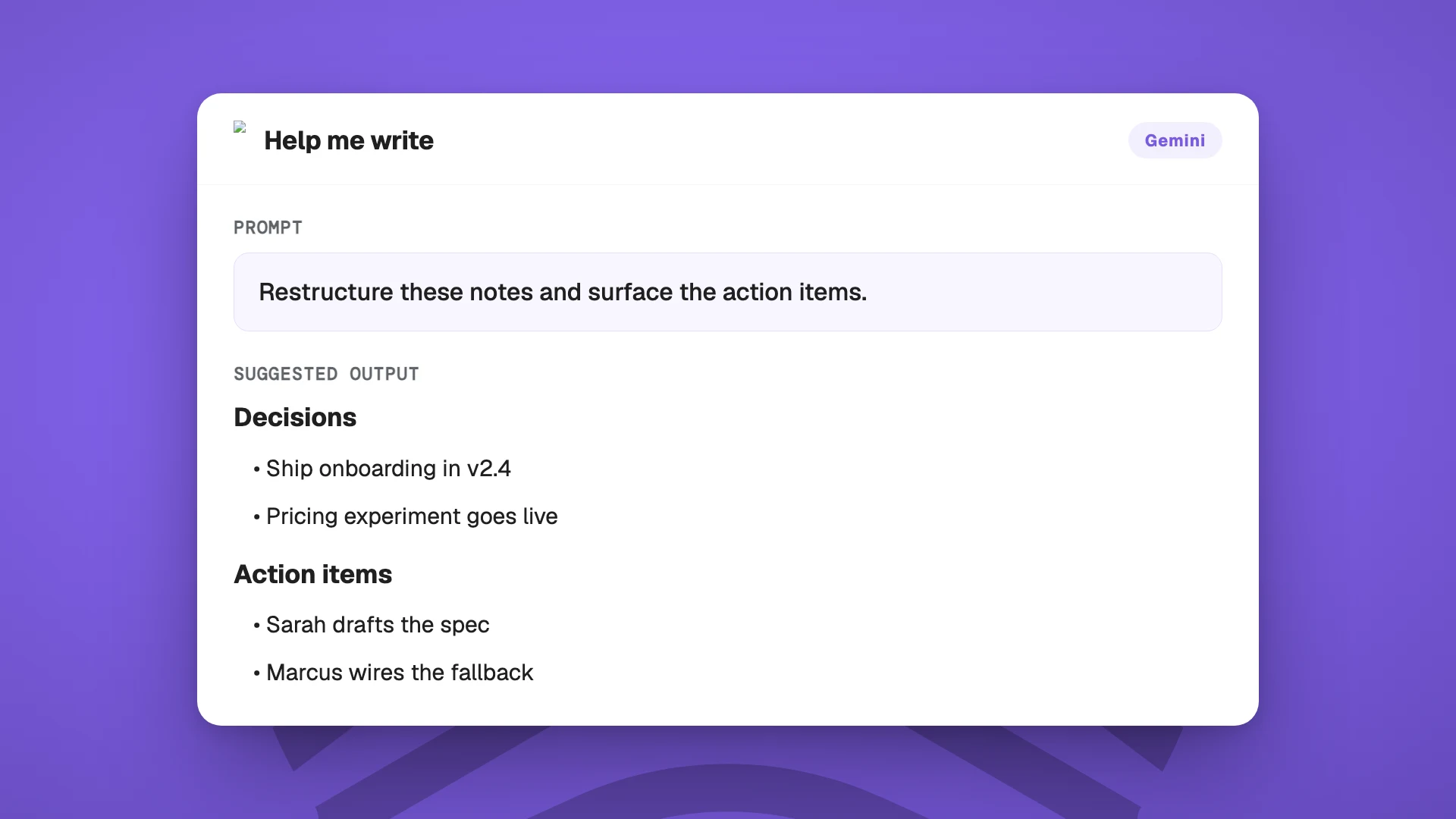
Use Gemini to clean it up. If you have Gemini enabled in Workspace, you can prompt the Doc to rewrite your messy notes into a cleaner structure, fix typos, and pull out the action items. It does not recover what you missed, but it makes what you did capture more presentable. Requires a paid Workspace plan with Gemini.
Three habits make any meeting note, AI-assisted or not, dramatically more useful:
- >State the agenda out loud at the start. "Today I want to cover three things: status on the integration, the pricing question, and next steps." Anchors the structure for the whole call.
- >Summarize verbally before you end. "So to recap, we agreed to ship feature X by end of month, Sarah will own the spec, and we will revisit pricing next quarter." A 60-second recap dramatically improves the accuracy of the decisions and action items you (or your AI) extract afterward.
- >Pick the right format for the call. Generic meeting notes serve nobody well. The notes for an internal sync should look different from the notes for a 1:1, which should look different from a sales discovery call.
Neural Summary takes the notes for you. Drop the recording in, pick a Lens (Meeting Minutes, Executive Summary, 1:1 Notes, Retrospective, and more), and get a consulting-grade structured summary back. Sections, decisions surfaced, speaker attribution where it matters. The bottom line lands at the top. The details are still there underneath. The kind of summary you would proudly share with a client without rewriting a word.
Action items come with owners and dates. Even when nobody said the words out loud, Neural Summary suggests who should own each item and when it is realistically due, based on what was discussed. You can correct them in a click. The point is that they are visible. A blank "Action items" list with no owners hides accountability. A list with names and dates draws the eye. What gets seen gets done.
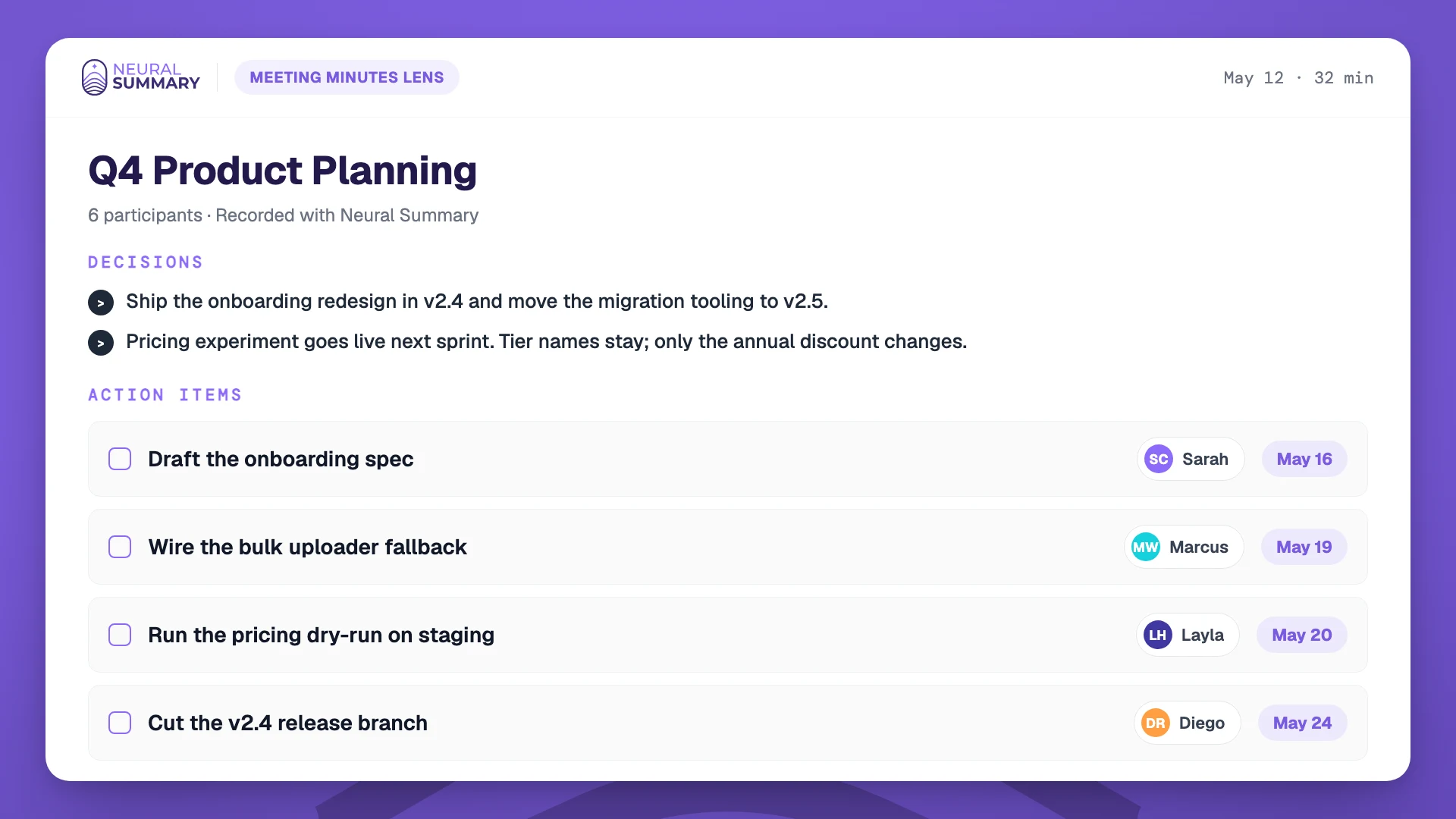
You stop taking notes during the call. You give the meeting your full attention. The notes show up, structured, when the call ends.
Step 3: Turn conversations into work artifacts
Notes are a record. They are not the work.
The actual work that comes out of a meeting is concrete. A flowchart of the process you just discussed. A sprint-ready backlog with acceptance criteria. A follow-up email to the prospect with their three pain points named. A project brief. A decision log. A CRM update with objections logged. These are the deliverables. The notes were just the input.
You can produce all of these manually. After the call, open Miro and sketch the flow. Open Linear and break the discussion into tickets with owners. Draft the follow-up in Gmail, pulling out the language the prospect used. Log decisions in Notion. Update HubSpot.
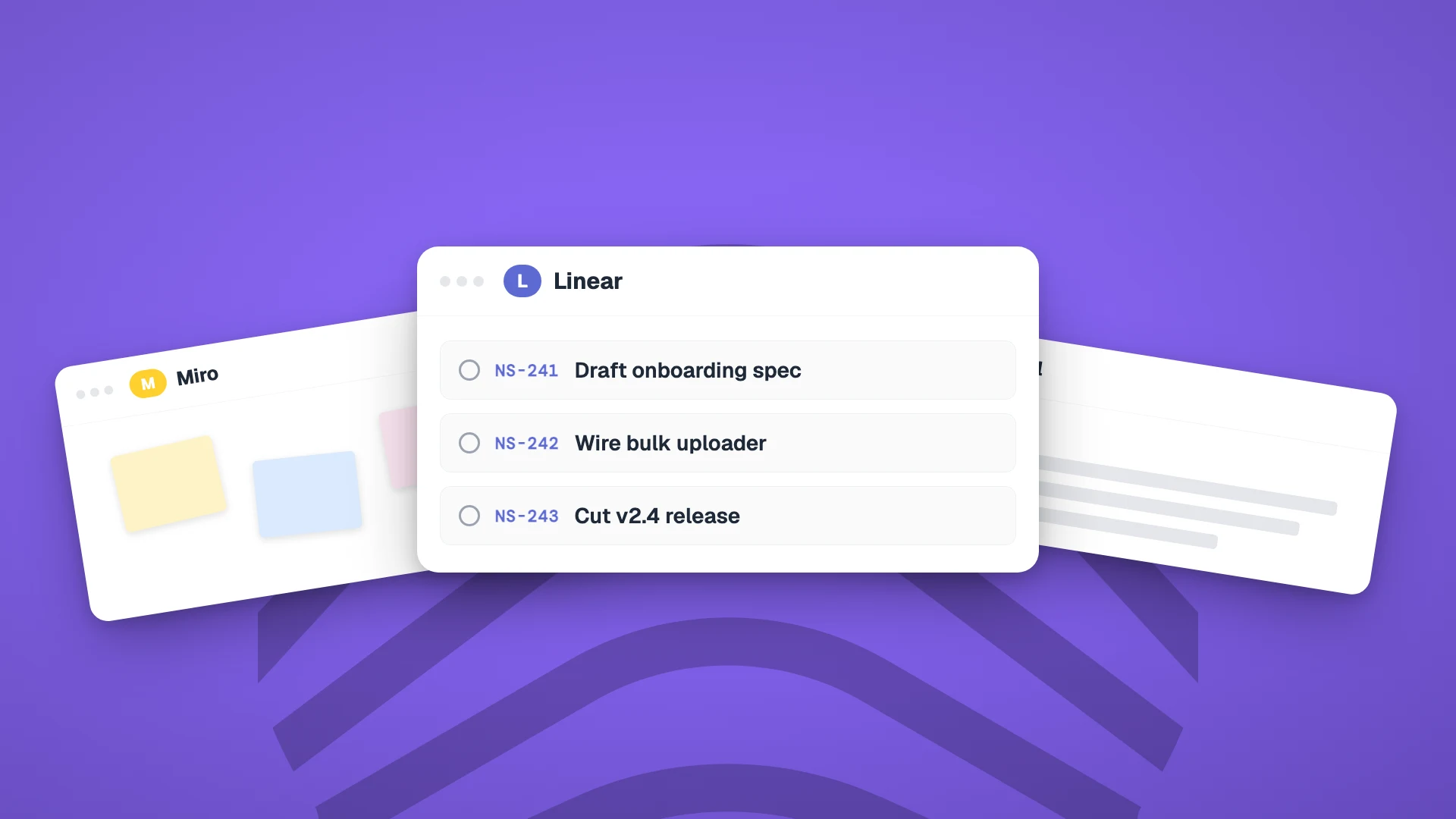
That is a lot of switching, retyping, and remembering. For a 30-minute call, it routinely eats 90 minutes of post-meeting admin.
Neural Summary generates the artifacts for you. From the same recording, pick whichever Lenses your call needs and they all generate in parallel. One recording, many outputs.
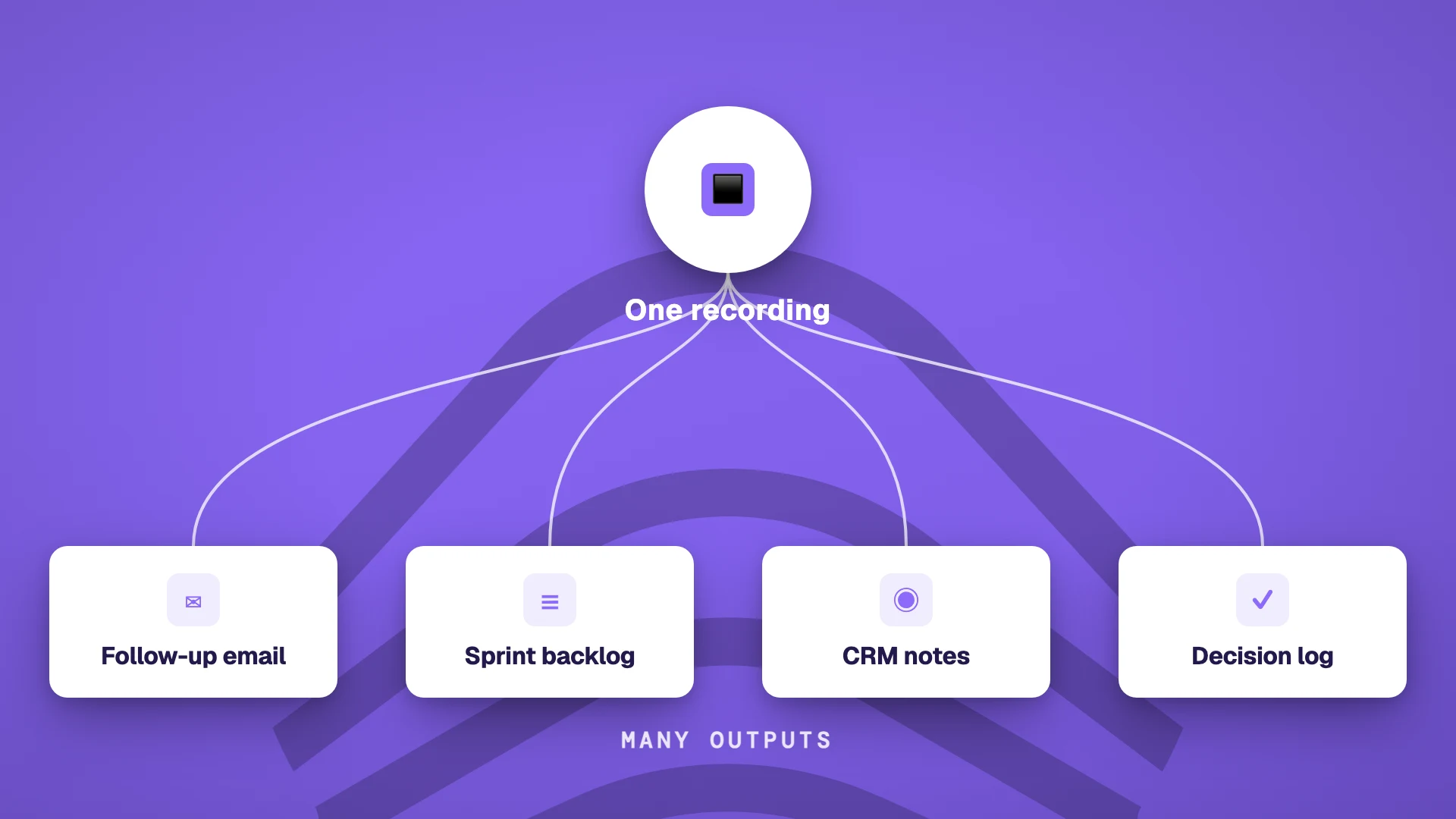
The right Lens depends on what work the meeting was supposed to produce:
| Meeting type | Recommended Lenses |
|---|---|
| Sales discovery | Follow-up email, CRM notes, deal qualification |
| Client kickoff | Project brief, SOW outline, action items |
| Sprint planning | Agile backlog, decision log |
| Product retrospective | Retrospective notes, action items |
| 1:1 | 1:1 notes, coaching notes |
| Performance review | Performance review summary, action items |
| Strategy session | Executive summary, decision log |
| All-hands | Executive summary, cascade-ready action list |
| Internal sync | Meeting minutes, action items |
What "good" looks like depends on who the artifact is for:
Prospects love follow-ups that show you listened. Name their three pain points in their own language. Propose one concrete next step. Send it within an hour.
Clients love deliverables that are ready to act on. Send the brief, the proposal, the SOW outline. Not notes from your strategy session. The strategy itself.
Teammates love clear assignments. "Sarah owns the spec by Friday, Marcus reviews on Monday, we revisit at standup Tuesday" beats a paragraph of context every time.
Two practical habits compound on top:
- >Pick the Lens before you record, when you can. Knowing in advance that you will produce a follow-up email and a CRM note shapes the questions you ask in the call. You probe harder for next steps, close cleaner, leave less to interpretation.
- >Send while it is warm. A follow-up that arrives within an hour of the call lands differently than one that arrives the next day. With the right workflow that is realistic, not aspirational.
The end-to-end workflow
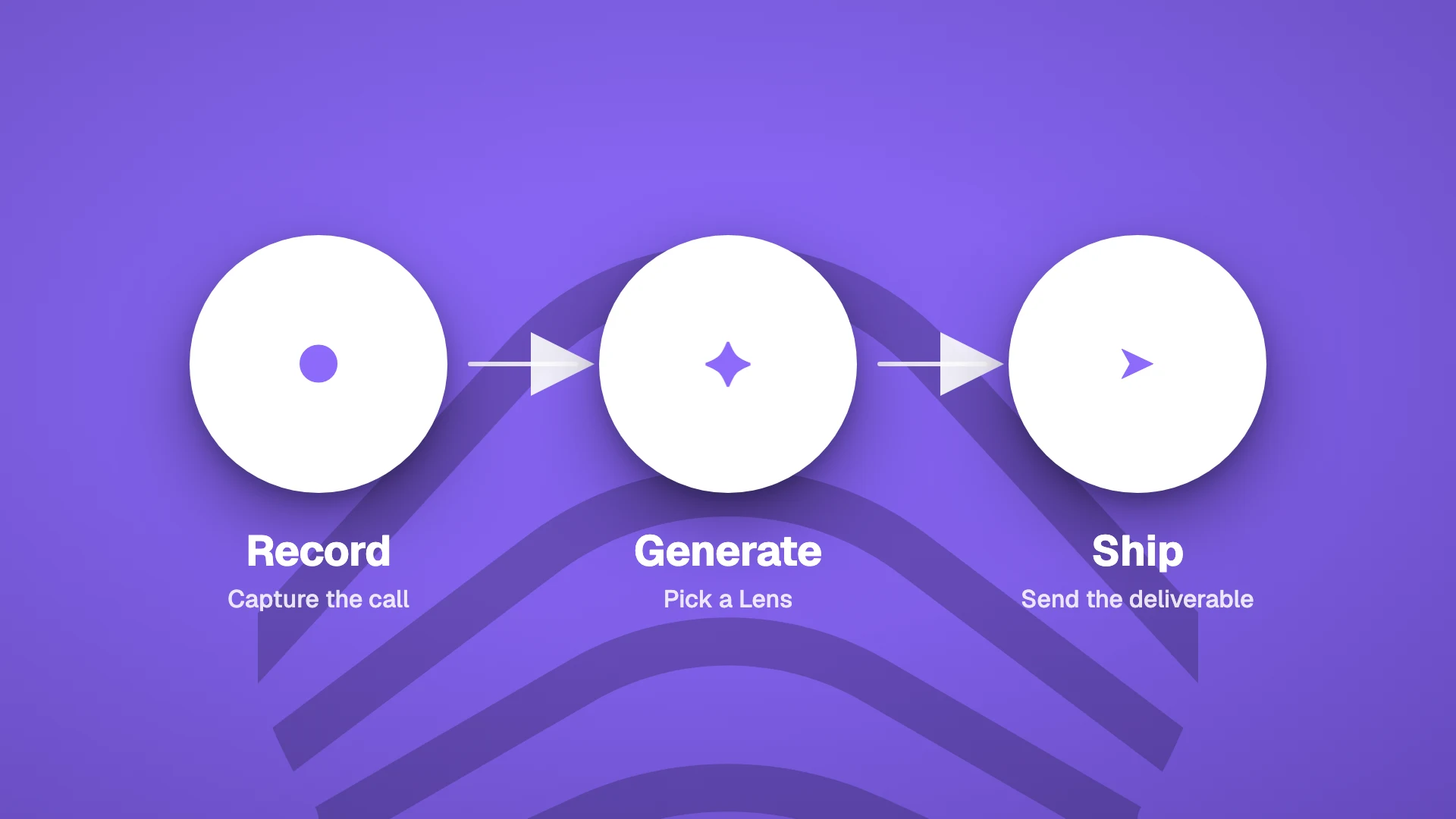
Putting the three steps together looks like this:
- 1Start the recording before you join the Meet. In Neural Summary, pick "Tab recording," select the Google Meet tab, and check "Share tab audio." Your microphone is mixed in automatically.
- 2Run the meeting normally. No bot in the call, no participant prompt, no second device. State the agenda at the top, recap verbally before you close, stop the recording when the call ends.
- 3Pick your Lenses, review, and ship. Meeting minutes for the team. Follow-up email for the prospect. Sprint backlog for engineering. The deliverables open in your dashboard. Edit if needed, then copy into Gmail, paste into your CRM, drop into Linear, share a link.
Steps 2 and 3 take under five minutes for most calls. The follow-up goes out the same hour, often within minutes of the call ending, while the conversation is still warm in everyone's head.
The capability stack
Each of the three steps credits a different layer of the stack. Google Meet handles the call. Workspace and Gemini add recording and a tidy recap. Neural Summary sits on top, producing the deliverables, on any tier including free Gmail.
 Free → Pro
 +
+
 Free
FreeThe smart way to take notes in Google Meet
You can take great notes in Google Meet the hard way.
Record the call, if your Workspace tier allows it. Type into a Google Doc while the meeting runs, and lose half your attention to the keyboard. State the agenda at the top, give a verbal recap at the bottom. Run Gemini over the result to clean it up. Then sit down afterward to draft the follow-up email, pull out the action items, assign owners, set dates, and update the CRM. Two hours later, you have something to send.
Or you can take great notes the smart way.
Start a tab recording in Neural Summary. Pay attention to the meeting. When the call ends, pick a Lens. The decisions, action items with suggested owners and dates, follow-up email, and sprint backlog are waiting in your dashboard. Edit if you want. Ship.
Five minutes instead of two hours. On every Google Meet call. On every plan. Including free Gmail.
Also in this series: how to take notes in Zoom and how to take notes in Microsoft Teams.
Work smarter, not longer.